How to stream a Riftbound game with a phone
The site's overlay lets you stream a game with OBS. At a local tournament or a game with friends, a PC, a camera and a second screen quickly take up too much room.
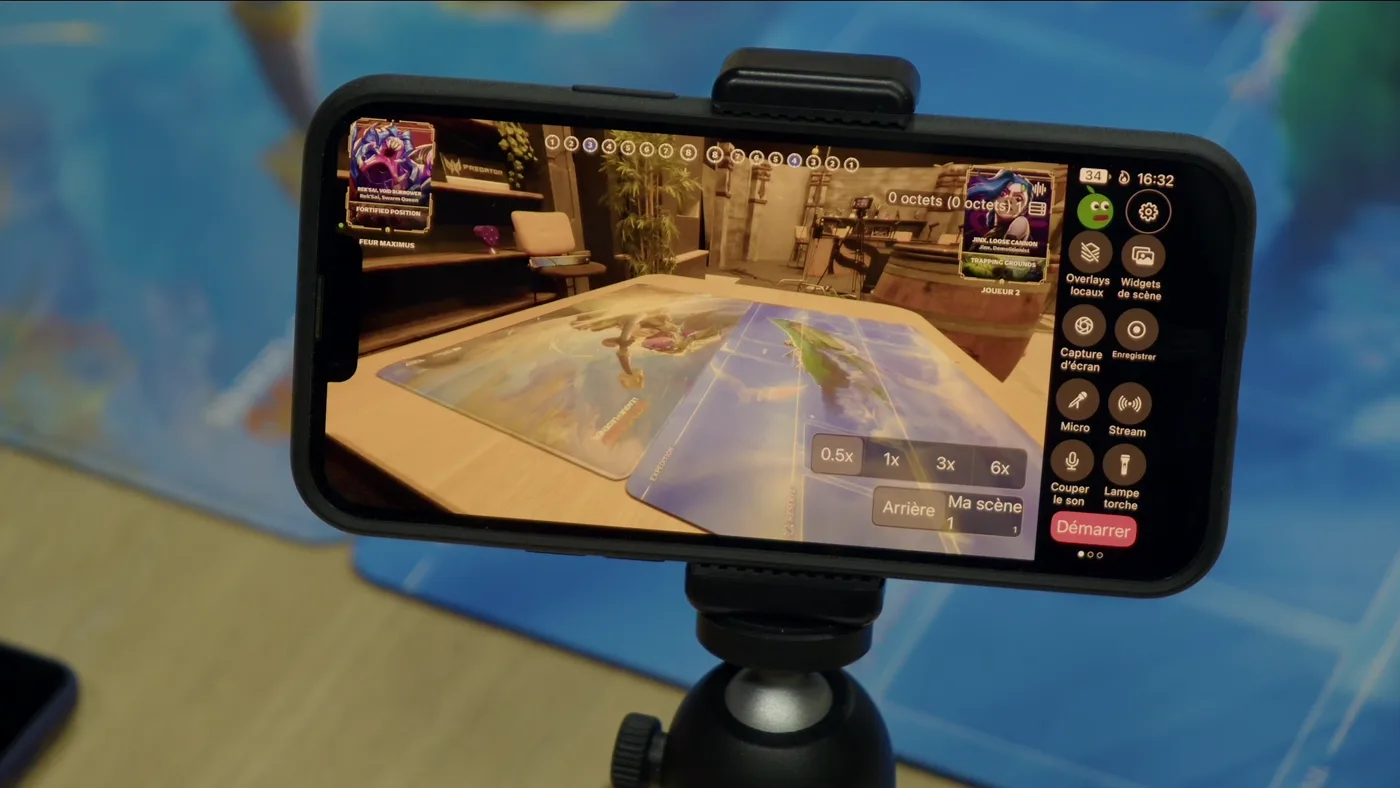
This new version runs on two devices: a phone on a tripod films the table and displays the overlay; a tablet, or an old phone, sits between the players to track points. The players manage their match, the score updates on stream, and you can focus on the broadcast.
An overlay made for phones
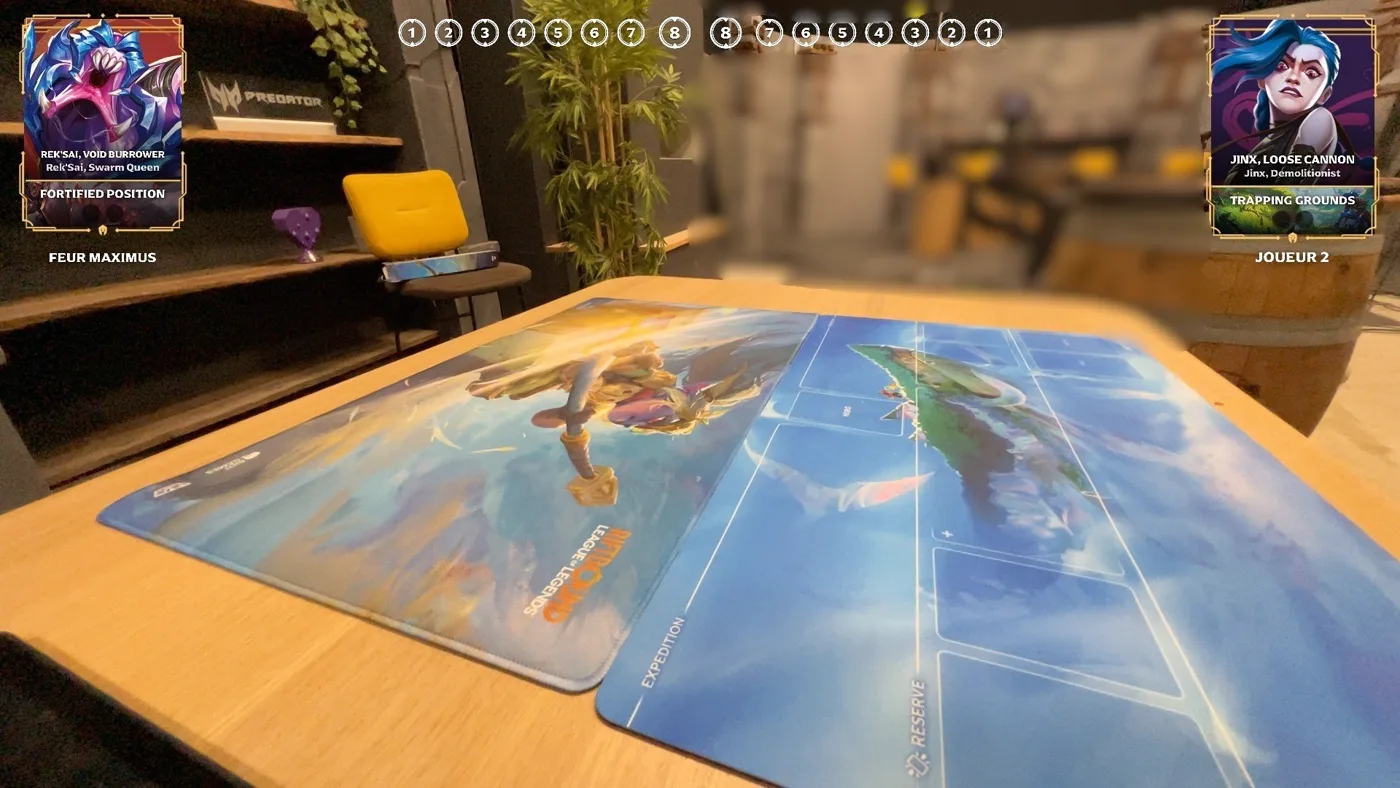
The compact overlay keeps what viewers need to follow the game: the score, both Legends with their chosen champion, the battlefields, games won and the card on display. It removes the camera frames, layout, timer and event logo.
Its transparent background sits over the video without hiding the playmat. Text remains readable on a phone's small screen.
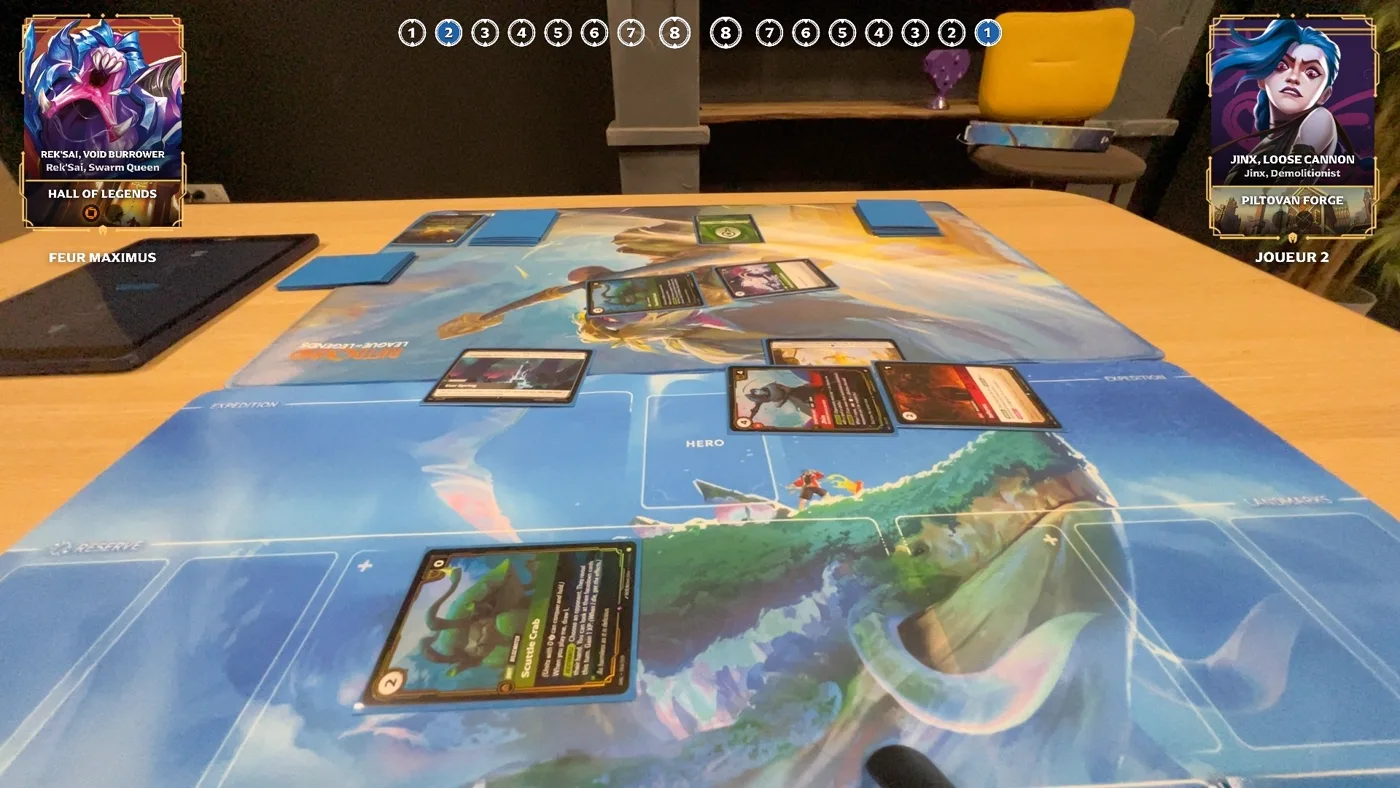
You can start the scene before receiving the decklists. The card frame stays empty, then you paste each list while the players get ready.
During the game, one click shows a card from the decklist and a second hides it. Search also lets you show a card that is in neither deck. If nobody is running the broadcast, automatic mode cycles through the cards at the chosen speed.
The match companion
Players open a link, with no account or app to install. They choose the format, the points needed to win, then their names, Legend, chosen champion and battlefield. After the recap, "Start the game" sends everything to the overlay.
The screen then splits lengthwise. Each player reads their half the right way up from their seat and changes their points with two large buttons.
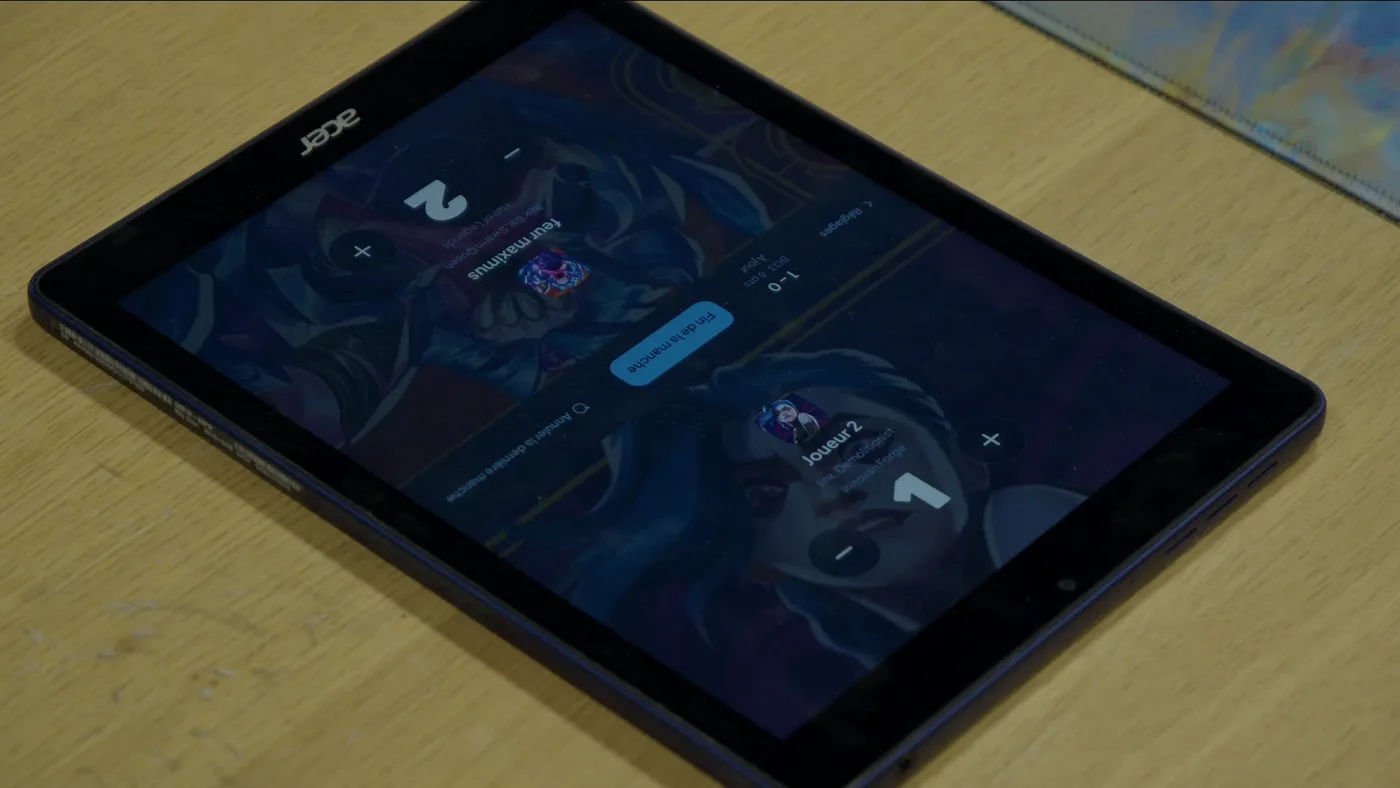
At the end of a game, players tap "End game", choose the winner and select the next battlefield. "Undo last game" fixes a mistake.
On your side, you can change the title or displayed card without changing the score entered by the players.
Anyone with the companion link can change the score. Do not show this link on stream or leave it visible in a screenshot.
Installing the overlay on your phone
It all starts on the Overlay page in your profile. Sign in with Discord, and keep these two links within reach:
| Link | What it is for |
|---|---|
| The compact overlay | The overlay to lay over your phone's picture |
| The companion link | The players' side, to send to them |
Preparing the match on the site
The Overlay page controls the broadcast. Every change is saved and sent to the screen immediately: there is no Save button.
- Open Links and OBS display, then copy the compact overlay. This is the address you will paste into Moblin.
- Copy the companion link, then open it on the tablet placed between the players.
- The players choose the format, points needed to win, their names, Legends, chosen champions and battlefields. As soon as they tap Start the game, the overlay receives these details.
- To show cards, open Cards on screen in the dashboard. Paste one decklist for each player, tap Load, then choose the display. Tap a card to show it; Auto slideshow cycles through them.
You can correct a name, score or displayed card from the dashboard during the match. The companion and Overlay page update different parts of the screen, so players can keep tracking points while you make changes.
With Moblin
Moblin is a free, open-source iPhone app. It films, streams to Twitch, YouTube or Kick, and can place a web page over the video.
The compact overlay loads in Moblin as a transparent Browser widget. Moblin receives a 1920 × 1080 web page, then scales it to the phone's video. Keep this size even if the iPhone screen uses a different resolution.
Setup takes six steps:
- Settings, then Scene widgets, then Create.
- Type Browser, and a name so you can find it again.
- Paste the compact overlay link into the URL field.
- Tick the scene that films the table.
- In the widget settings, keep the width at 1920 and height at 1080 so the overlay does not stretch.
- Check that the widget is switched on in the scene.
The video below shows all six steps. The app appears in English because it follows the phone's language.
On Android with IRL Pro
IRL Pro can add the overlay as a web page over the camera feed.
- Open Settings, then Overlays and Web Overlays.
- Tap New web overlay.
- Name the overlay, then paste the compact overlay link into URL.
- Under WebView options, set the width to 1920, height to 1080, and scale to 100%.
- Return to the camera and check that the overlay appears before going live.
On Android with PRISM Live Studio
PRISM Live Studio can also add a web page to the scene.
- Open My Studio from the camera screen.
- Tap Web.
- Paste the compact overlay link into URL, add a title, then tap Save.
- Fit the overlay to the full frame in the editor.
- Close the editor and check the camera view before going live.
Choosing a mount
To keep the picture steady for the whole game, place the phone on a tripod or an arm clamped to the table. Neither of these links is sponsored: I earn nothing from sales and prices may change.
On the table, beside the playmat
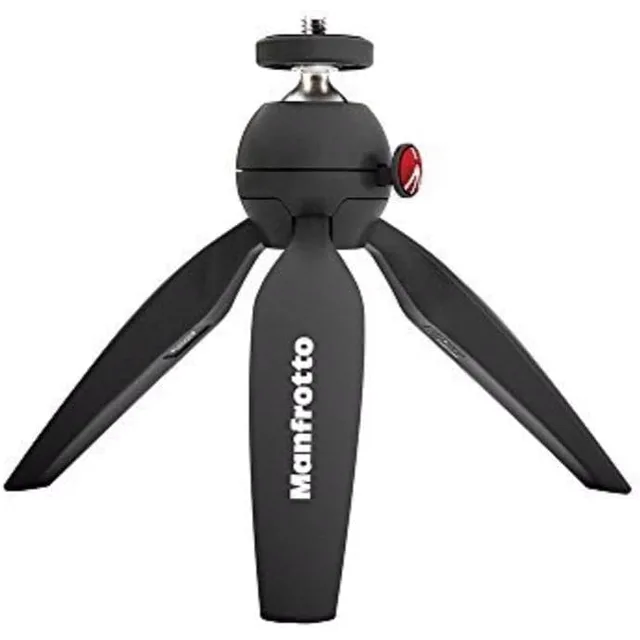
This small tripod films at an angle from the edge of the playmat and fits in a bag pocket. You need to add a phone clamp: the model has a camera screw, not a cradle.
Above the playmat
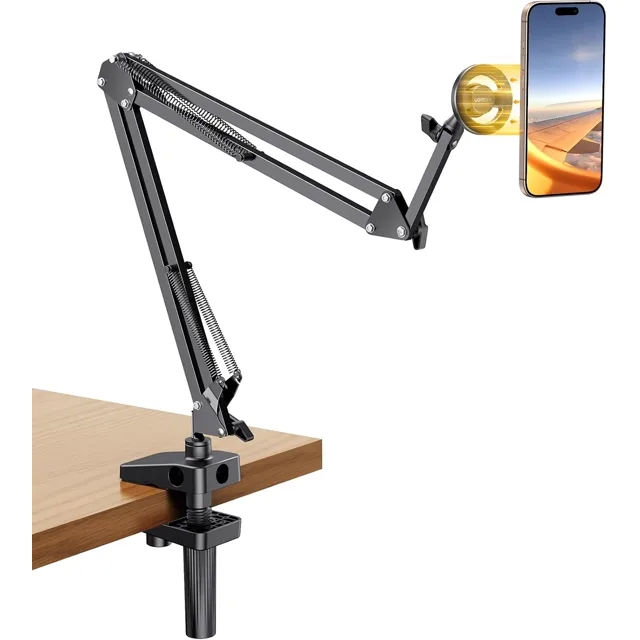
A top-down view shows the game better, but requires suspending the phone without getting in the players' way. This articulated arm clamps to the table edge and holds an iPhone with a MagSafe magnet. It includes a magnetic ring for other phones.